
Fix an error
Tap the error you see to get the fix, or search for it.
Frequently needed help
Other errors
Why is this needed? A newly purchased Java Edition may not have a profile name yet. Without it, Aleph Kids cannot launch Minecraft. You only need to set it once. It is different from your Xbox gamertag.
If the app shows “Minecraft profile is not ready” or “Minecraft profile not ready”, choose “Open minecraft.net”.
If it shows “No valid Java Minecraft profile”, you can also open minecraft.net/ko-kr/msaprofile in a browser.
On the login or registration screen, choose “Sign in with Microsoft”.
Do not choose “Join”, which creates a new account.
- Sign in with the Microsoft account that received the purchase receipt email. It must be the account that bought Java Edition.
Set a name using “Change Profile Name” in the Java Edition section.
Using English letters, numbers and underscores (_) is safest. Leave out Korean characters and spaces.
Use at most 16 characters and a name nobody else is using. You cannot change it again for 30 days.
- A name in the profile page’s Java Edition section means it is complete.
Return to the Aleph Kids desktop app.
Open “Account” from the profile menu.
Choose “Connect Microsoft Account” and sign in with the same account.
“Microsoft account connected” confirms success.
- Choose “Begin Class”.
Common mistakes
If you used a different Microsoft account, sign out and use the account that bought the game.
Choose the app’s “Try a different account”, then “Use another account” on the Microsoft screen.
- If your Game Pass subscription ended, subscribe again or buy Java Edition.
- A phone/tablet Bedrock purchase is not Java Edition for computers. Buy Java Edition or take the class on that phone/tablet.
- If the purchase belongs to a child account and the app asks for family settings, allow access at account.xbox.com/settings using the parent’s account. For a first purchase, using the parent’s account is simplest.
If the name will not save, remove Korean characters and spaces.
Turn off your VPN.
Try again in a phone browser.
- If you prefer Minecraft Launcher, choose “Microsoft Login” and Java Edition. You can set the name on the first-use naming screen there.
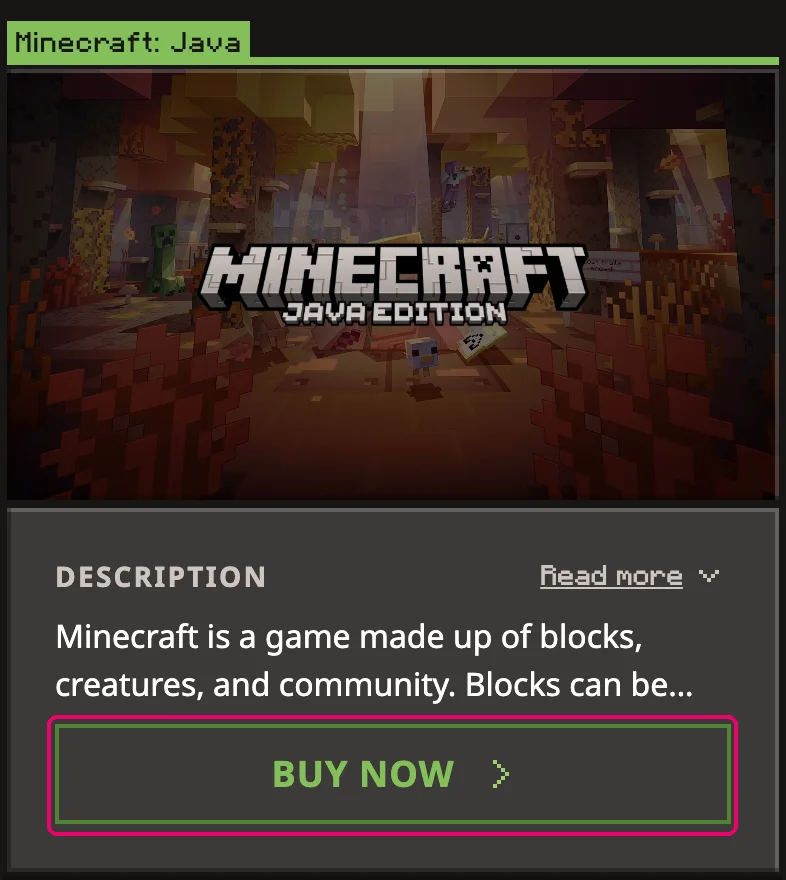
01 If the Java card shows “BUY NOW”, check that this is the account that purchased Java Edition.
Follow with screenshots
The pictures show the change-name form for an account that already has a name. Use 3–16 letters, numbers or underscores (_). After a change, you must wait 30 days before changing it again.
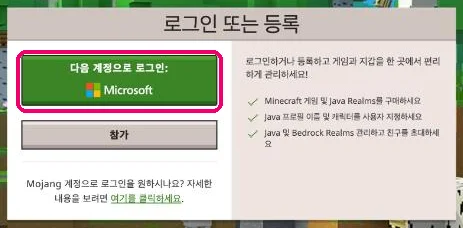
01 Open minecraft.net/ko-kr/msaprofile, click “Sign in with Microsoft” (“다음 계정으로 로그인: Microsoft” in the picture), and sign in with the Microsoft account that purchased Java Edition. Do not click “Join” (참가). 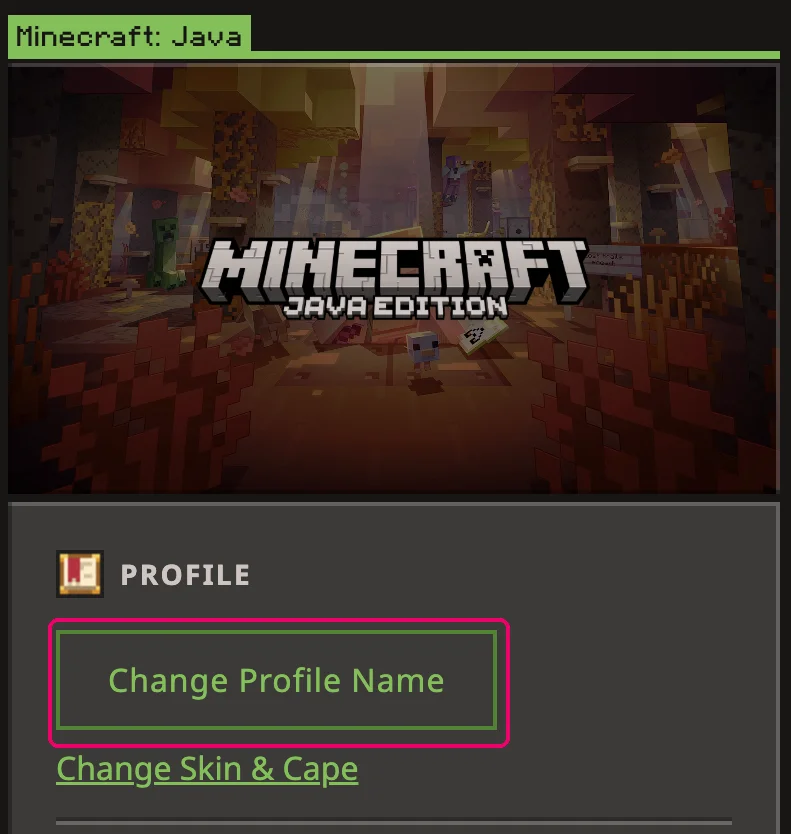
02 In the Java card, click “Change Profile Name”. 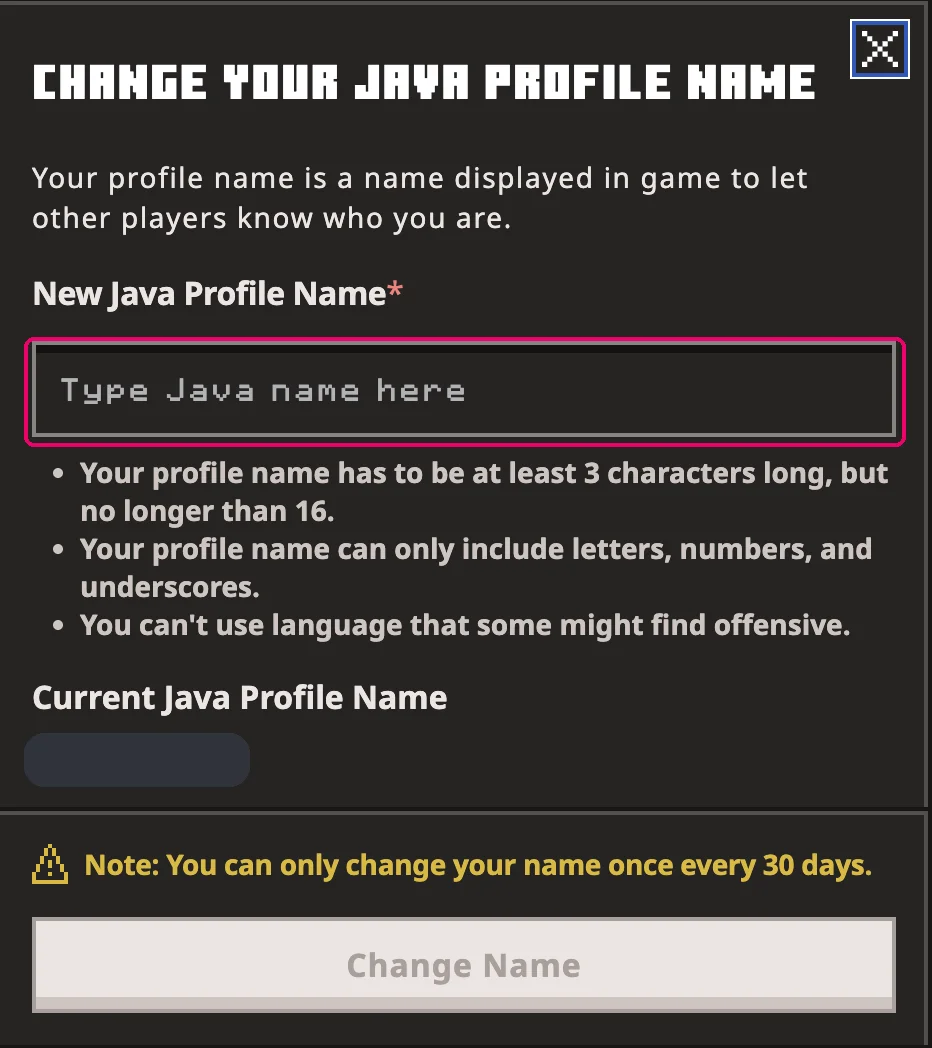
03 Enter the name you want in “New Java Profile Name”. 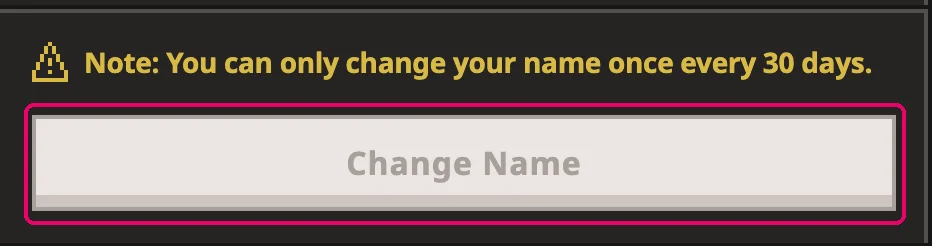
04 Click “Change Name”. 
05 Check that your name appears under “Current Java Profile Name”. 
06 Click the profile button at the top right of Aleph Kids. 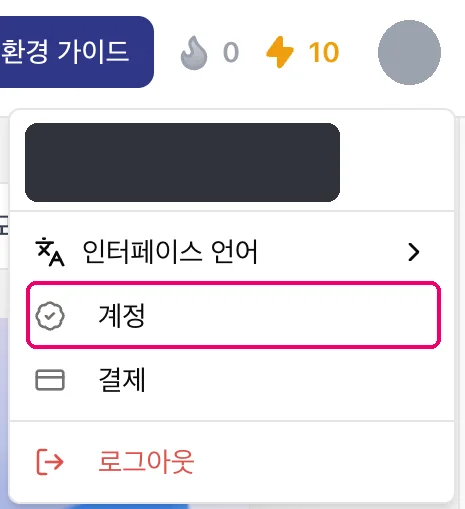
07 In the profile menu, click “Account” (계정 in the picture). 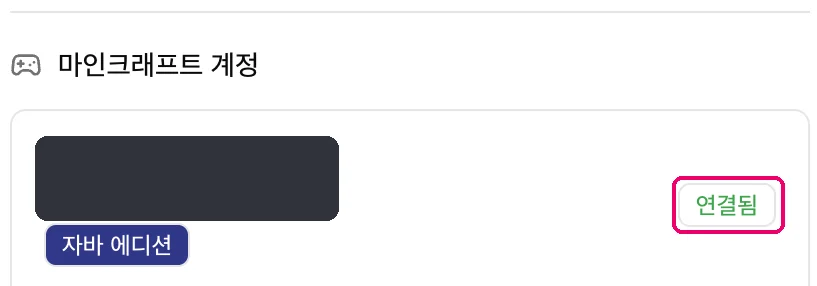
08 Check for “Connected” (연결됨 in the picture) and “Java Edition” (자바 에디션). If disconnected, click “Connect Microsoft Account” (마이크로소프트 계정 연결).
The final picture shows an already connected account. If disconnected, connect the same Microsoft account that purchased Java Edition.